Package Information
Available Nodes

Documentation
n8n-nodes-npilot
Npilot is an n8n community node that brings Playwright-powered browser automation into your workflows. Use it to navigate pages, interact with UI elements, extract structured data, take screenshots, and run custom JavaScript — all from within n8n, without writing a separate scraper.
n8n is a fair-code licensed workflow automation platform.
Installation
Npilot controls a real Chromium browser, so Chromium must be available in the environment where n8n runs. Choose the path that matches your setup.
Option 1 — Self-hosted n8n (Non-Docker)
⚠️ This option is for native installations only (Ubuntu, Debian, macOS, Windows). If you're running n8n in Docker, skip to Option 2.
Step 1 — Install the community node
In n8n go to Settings → Community Nodes → Install and enter:
n8n-nodes-npilot
Or install it via npm in your n8n root:
npm install n8n-nodes-npilot
Step 2 — Install Chromium
Npilot does not download a browser automatically. You must install Chromium in the same environment as n8n.
Using Playwright's built-in installer (recommended):
npx playwright install chromium --with-deps
Or using your system package manager (Debian/Ubuntu):
apt-get install -y chromium-browser
Step 3 — Point Npilot to the binary (only needed when using a system Chromium)
If Playwright's own browser is not used, set the environment variable so Npilot can find the binary:
export PLAYWRIGHT_CHROMIUM_EXECUTABLE_PATH=/usr/bin/chromium-browser
Add this to your n8n startup script or .env file so it persists across restarts.
Step 4 — Restart n8n
Restart n8n to pick up the new node and environment variable.
Option 2 — Docker
⚠️ Important: The official n8n Docker image (n8nio/n8n) does not include a browser and uses Alpine Linux, which is incompatible with Playwright's Chromium binaries. To use Npilot in Docker, you have two options:
Option 2A — Use the pre-built Npilot image (recommended)
A ready-to-use Docker image is available on Docker Hub. It bundles n8n, Chromium, and the Npilot node in a single container — no additional setup required.
Quick start:
docker run -d \
  -p 5678:5678 \
  --name n8n-npilot \
  --shm-size=512m \
  -e N8N_BASIC_AUTH_ACTIVE=true \
  -e N8N_BASIC_AUTH_USER=admin \
  -e N8N_BASIC_AUTH_PASSWORD=changeme \
  alee0510/n8n-npilot:latest
Access n8n at: http://localhost:5678
Using Docker Compose:
services:
  n8n:
    image: alee0510/n8n-npilot:latest
    restart: unless-stopped
    ports:
      - "5678:5678"
    environment:
      - N8N_BASIC_AUTH_ACTIVE=true
      - N8N_BASIC_AUTH_USER=admin
      - N8N_BASIC_AUTH_PASSWORD=changeme
    volumes:
      - n8n_data:/home/node/.n8n
    shm_size: "512mb"
    deploy:
      resources:
        limits:
          memory: 2g

volumes:
  n8n_data:
Then run:
docker compose up -d
Option 2B — Build a custom Debian-based n8n image
If you need to customize the setup, you can build your own image using n8n's Debian variant and install Chromium manually.
Example Dockerfile:
FROM n8nio/n8n:latest-debian

USER root

# Install Chromium and dependencies
RUN apt-get update && \
    apt-get install -y chromium chromium-driver && \
    rm -rf /var/lib/apt/lists/*

# Install Npilot node
RUN cd /usr/local/lib/node_modules/n8n && \
    npm install n8n-nodes-npilot

# Set Chromium path
ENV PLAYWRIGHT_CHROMIUM_EXECUTABLE_PATH=/usr/bin/chromium

USER node
Build and run:
docker build -t my-n8n-npilot .
docker run -d -p 5678:5678 --shm-size=512m my-n8n-npilot
Option 2C — Build from source
Clone the GitHub repository to customize the image:
git clone https://github.com/alee0510/n8n-npilot.git
cd n8n-npilot
docker compose up -d
What the Docker image includes:
- n8n (latest Debian-based image)
- Chromium browser with all dependencies
n8n-nodes-npilotpre-installed from npmPLAYWRIGHT_CHROMIUM_EXECUTABLE_PATHconfigured automatically
Operations
Npilot exposes 18 browser automation actions organized across two operation modes.
| Category | Action |
|---|---|
| Navigation | Navigate to URL, Wait for Navigation |
| Interaction | Click Element, Type Text, Select Option, Check / Uncheck, Hover-over Element, Scroll to Element, Press Key |
| Waiting | Wait for Selector, Wait (Fixed Timeout) |
| Extraction | Extract Text, Extract Attribute, Extract Table |
| Utilities | Take Screenshot, Evaluate JavaScript, Debug, Close Session |
Compatibility
- Minimum n8n version: 1.0.0
- Tested against: n8n latest (
n8nio/n8n:latest) - Node API version: 1
- Runtime: Node.js 18+
- Browser engine: Chromium (via Playwright)
Usage
1. Session model
Npilot is session-based. Each node execution can either open a fresh browser session or reuse one from a previous node by passing the Session ID. This lets you chain multiple Npilot nodes in a workflow, keeping the same browser page open across steps.
- A session is automatically closed after 5 minutes of inactivity (configurable via the TTL option).
- Up to 5 concurrent sessions can be open at the same time.
- Use the Close Session action to release a session explicitly when your workflow is done.
2. Operation modes
Choose how you want to define browser steps using the Operation Modes field.
2.1 Action Based (default)
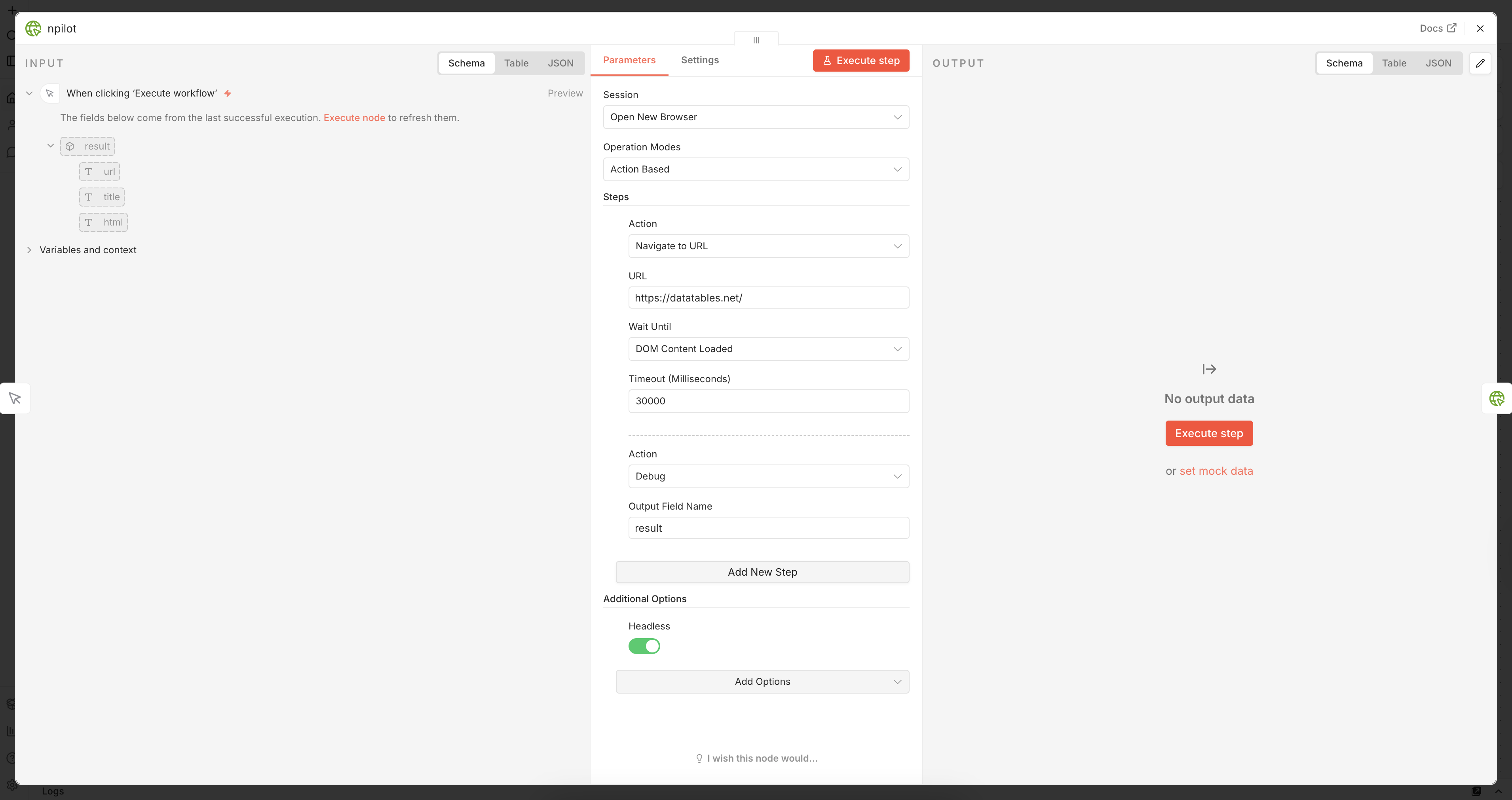
Build steps one by one using the UI. Each step has an Action dropdown that shows only the fields relevant to that action. Steps are executed top-to-bottom and can be reordered by dragging.
Best for: building and testing workflows interactively.
2.2 Script Based (JSON)
Provide a JSON array of step objects directly. Each object must have an action key plus the corresponding fields for that action:
[
	{ "action": "navigate", "url": "https://example.com", "waitUntil": "domcontentloaded" },
	{ "action": "click", "selector": "#login-btn", "timeout": 5000 },
	{ "action": "type", "selector": "#email", "text": "user@example.com", "clearFirst": true },
	{ "action": "extractText", "selector": "h1", "outputField": "heading" }
]
Best for: dynamically building a script in an earlier node (e.g. with a Code node) and passing it in as a variable.
Actions reference
1. Navigate to URL
Opens a URL in the browser. Configure Wait Until to control when navigation is considered complete:
DOM Content Loaded— HTML parsed, resources still loading (recommended default)Network IDLE— no network activity for 500 ms; use for SPAs or lazy-loaded pagesLoad— full page load eventCommit— response received; fastest, useful for redirects
2. Click Element
Clicks the element matched by the Selector. Waits up to Timeout ms for the element to appear.
3. Type Text
Types into the matched element. Enable Clear Before Typing to empty the field first (useful for pre-filled inputs).
4. Select Option
Selects a <select> option by its value attribute (not the visible label). Use the Debug action to find the correct value if unsure.
5. Check / Uncheck
Sets the checked state of a checkbox or radio button. Toggle Checked on or off.
6. Hover-over Element
Moves the mouse pointer over the matched element. Useful for triggering dropdown menus or tooltips.
6. Scroll to Element
Scrolls the matched element into view. Add this before Extract Attribute or Extract Text when content is lazy-loaded on scroll.
8. Press Key
Dispatches a keyboard event. Common keys: Enter, Tab, Escape, ArrowDown, ArrowUp.
8. Wait for Selector
Pauses the workflow until an element matching the Selector reaches the target State:
Visible— in the DOM and visible (default)Attached— exists in DOM even if hiddenHidden— hasdisplay:none,visibility:hidden, or zero sizeDetached— removed from the DOM
10. Wait (Fixed Timeout)
Pauses for exactly the number of milliseconds set in Timeout. Use as a last resort when selector-based waiting is not possible.
11. Extract Text
Reads the inner text of the matched element and saves it to Output Field Name in the JSON output.
12. Extract Attribute
Reads an HTML attribute (e.g. href, src, data-id) from the matched element. For lazy-loaded images or links, add a Scroll to Element + Wait (Fixed Timeout) step first.
13. Extract Table
Reads an HTML <table> matched by the selector and returns a flat array of row objects, using <thead> cells as keys. Saves to Output Field Name.
14. Take Screenshot
Captures the current viewport as a PNG image. Enable Full Page to capture the entire scrollable page. The image is stored as binary data under Output Field Name.
15. Evaluate JavaScript
Runs a JavaScript function inside the browser context. The function must return a JSON-serialisable value (string, number, plain object, or array). The return value is saved to Output Field Name.
// Example: extract all href links from the page
() => Array.from(document.querySelectorAll('a')).map((a) => a.href);
16. Debug
Captures the current page URL, title, and full HTML source and saves them to Output Field Name. Use this to inspect the page state when a selector fails.
17. Close Session
Closes the browser session associated with the current Session ID and releases all resources. Always add this as the final step in a workflow to avoid leaving orphaned browser processes.
Additional options
These options are available under the Additional Options section:
| Option | Default | Description |
|---|---|---|
| Extra HTTP Headers | — | Custom request headers sent with every browser request (e.g. for auth tokens) |
| Headless | true |
Run the browser without a visible UI. Disable when debugging locally |
| TTL (Milliseconds) | 300000 |
How long a session stays open when idle before being auto-closed |
| User Agent | — | Override the browser's default user-agent string |
| Viewport | 1280 × 800 |
Set a custom browser viewport width and height |
Resources
Version history
[0.1.7] - 2026-05-28
Changed
- Updated README.md installation documentation for better clarity
- Reorganized installation options to distinguish between native and Docker installations
- Added warning about Alpine Linux incompatibility with Playwright
- Improved Docker installation instructions with three clear sub-options
Documentation
- Clarified that Option 1 (Self-hosted) is for non-Docker installations only
- Added explicit warnings about official n8n Docker image limitations
- Improved Docker Compose examples and configuration details
[0.1.6] - 2026-05-28
Added
- Docker Hub image now available at
alee0510/n8n-npilot - Pre-built Docker image for quick deployment without building from source
Changed
- Updated README.md with Docker Hub installation instructions
- Reorganized Docker installation section to prioritize pre-built image
- Added Docker Compose example using pre-built image
Fixed
- Configured npm automation token for CI/CD publishing without 2FA prompts
[0.1.5] - 2026-05-28
Fixed
- Removed
prepublishOnlyscript for CI/CD compatibility - Added inline ESLint disable for
process.envusage in SessionManager - Fixed npm publishing workflow to use direct
npm publishcommand
Changed
- Updated GitHub Actions workflow to publish with npm provenance
- Improved CI/CD pipeline for automated releases
[0.1.4] - 2026-05-28
Added
- Initial public release with browser automation capabilities
- Session-based browser management
- Support for Chromium, Firefox, and WebKit browsers
- Multiple browser actions (navigate, click, type, screenshot, etc.)
- Docker support with Playwright
Features
- Session pooling with automatic garbage collection
- Configurable session TTL and max concurrent sessions
- Screenshot capture with binary data support
- Table extraction and text extraction
- Custom HTTP headers and user agent support
For detailed changes, see CHANGELOG.md