Package Information

Documentation
ODBC/JDBC Gateway — n8n community node
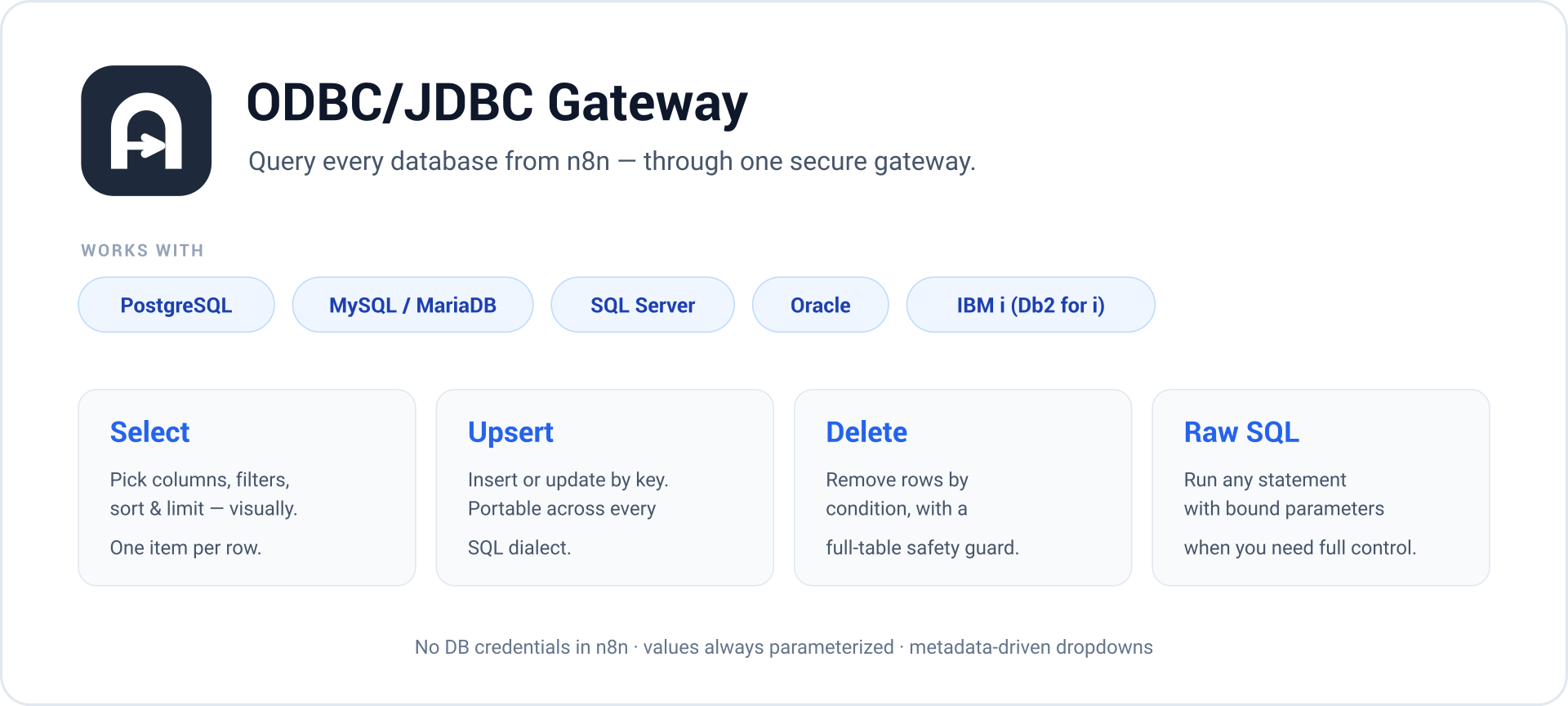
Talk to every database from n8n — visually, securely, without writing SQL plumbing.
This node lets your n8n workflows read and write data in PostgreSQL, MySQL/MariaDB, SQL Server,
Oracle and IBM i (Db2 for i) through a single, consistent interface. Pick a connection, a table and
the columns from dropdowns, add a few conditions, and you get clean results — one item per row,
ready for the rest of your workflow. No more "HTTP Request + Code to parse rows".
Why you'll like it
- One node, every database. The same Select / Upsert / Delete experience across all supported
engines — no dialect quirks to remember. - Build queries visually. Connection, schema, table and columns come from real dropdowns;
filters, sorting and limits are point-and-click. SQL is optional. - Results that just work in n8n. Each row becomes its own item with named fields, so you can map
it straight into the next step. - Secure by design. Database credentials never live in n8n — they stay in the gateway. Every
value you enter is sent as a bound parameter, so your queries are safe from injection. - Full control when you need it. Drop down to raw SQL for anything the visual builder doesn't
cover.
Requires the API Gateway component. This node talks to a companion API Gateway → ODBC/JDBC
over REST — that gateway is what actually connects to your databases. The node never connects to a
database directly, so a reachable gateway is required for it to work. To obtain the gateway or get
help deploying it, contact data4prime (see Support).
What you can do
Select — read data, visually
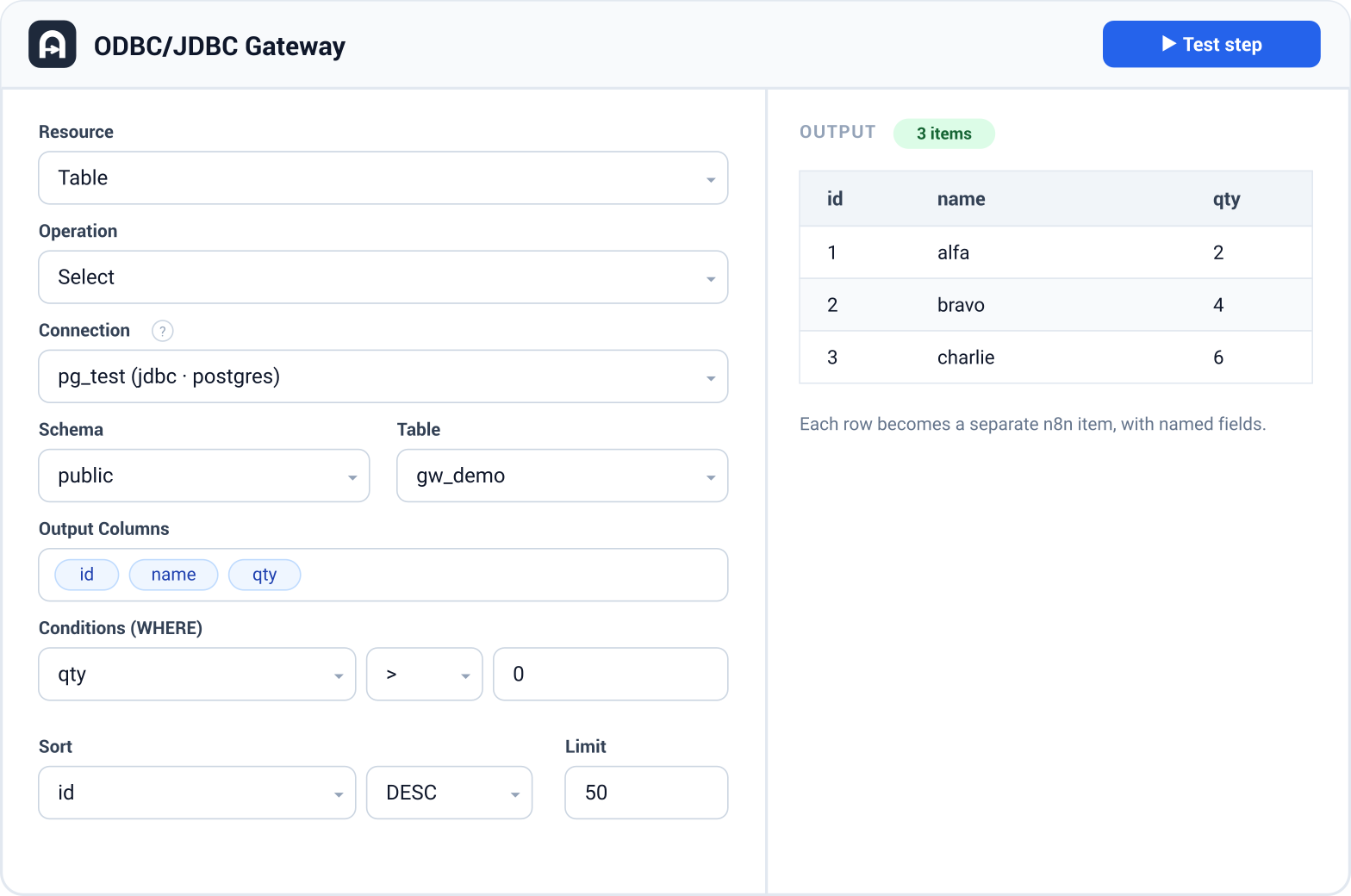
Choose the connection, schema and table from dropdowns, then pick the output columns, add
WHERE conditions (column · operator · value), an optional sort and a limit. Run the step
and each row comes back as a separate item with named fields. Leave the columns empty to return
everything.
Upsert — insert or update, the smart way
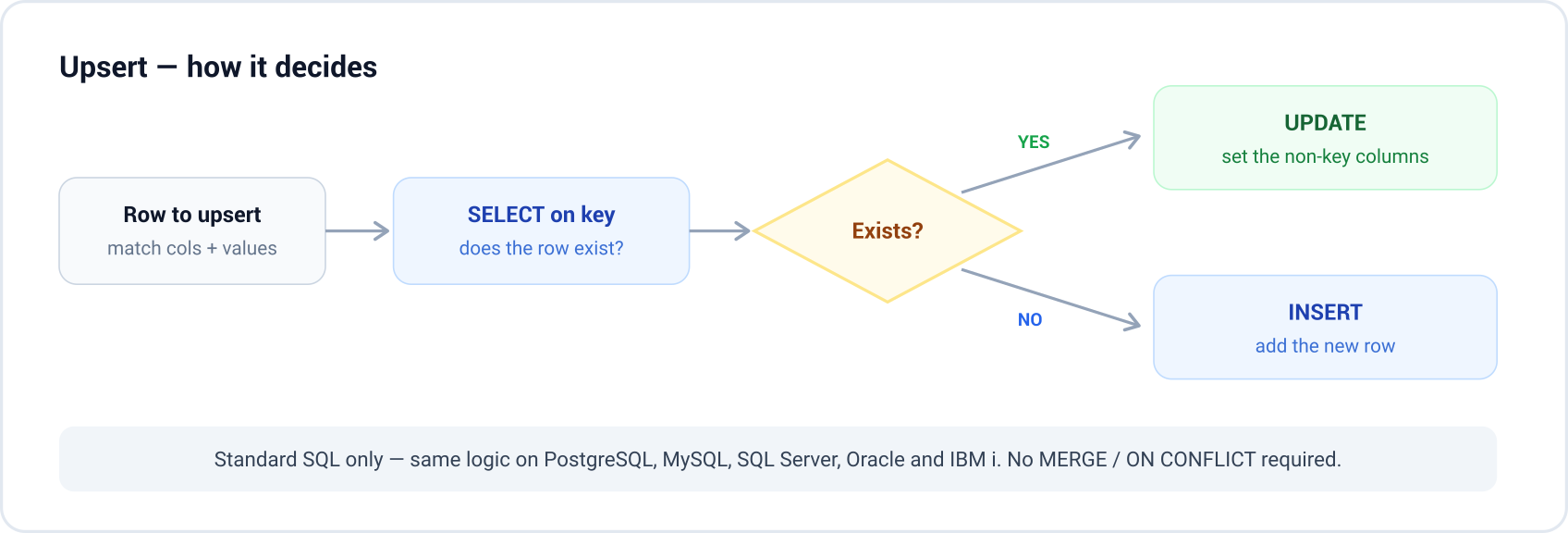
Pick the match columns (your key) and the values to send. The node checks whether a matching
row already exists, then updates it or inserts a new one — and tells you which happened
(inserted / updated). Because it uses only standard SQL, it behaves the same on every database,
with no special syntax to configure.
Delete — remove rows safely
Define the conditions for the rows to remove. As a safeguard against accidents, deleting an
entire table requires you to explicitly turn on Delete All Rows.
Run any SQL
Need something custom? The Query operations let you run any statement (with optional ?
parameters) and get the rows back as items, or get the number of affected rows for writes.
Browse your data sources
List the connections available on the gateway, and list the tables of any connection — handy
for discovery while you build a workflow.
Monitor activity
Read the gateway's call log straight from a workflow (System → Get Logs), with date filters and
filters by event, connection or outcome. Build alerts or dashboards on gateway activity without
shell access to the machine where it runs.
How it works
n8n workflow ──▶ ODBC/JDBC Gateway node ──REST (API key)──▶ Gateway ──▶ your databases
- The node sends your request to the gateway over HTTPS, authenticated with an API key.
- The gateway holds the connection definitions, the database drivers and the credentials — and
runs the query on the right engine. - Dropdowns (connections, tables, columns) are populated live from the gateway's metadata, so you
always pick from what really exists. - For Select/Upsert/Delete the node builds the SQL for you, quoting identifiers per database and
binding every value as a parameter.
Getting started
- Install the node. In n8n: Settings → Community Nodes → Install and enter
n8n-nodes-odbc-gateway. - Add the credential. Create an ODBC/JDBC Gateway API credential with the gateway's
Base URL (from n8n in Docker usehttp://host.docker.internal:8000) and the API key.
The Test button confirms the gateway is reachable. - Use the node. Add ODBC/JDBC Gateway to your workflow, choose Table → Select / Upsert /
Delete (or Query for raw SQL), and pick your connection and table from the dropdowns.
The connections you see come from the gateway's configuration — ask your gateway administrator
which ones are available, or use the Connection → List operation to discover them.
Support
Built and maintained by data4prime. For the gateway component, deployment help, or anything else,
get in touch: www.data4prime.com.
License
MIT