Package Information

Documentation
n8n-nodes-tool-switcher
Tool Switcher is an n8n community node that dynamically selects which AI tools to provide to an Agent based on configurable rules. Unlike a simple switch, it evaluates all rules and returns all tools whose conditions are satisfied — giving your AI Agent exactly the right set of capabilities for each situation.
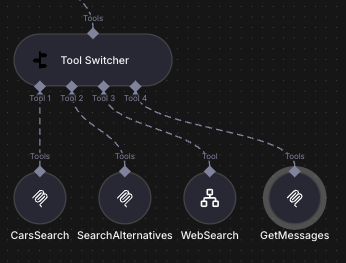
How It Works
Tool Switcher accepts between 2 and 10 tool inputs. For each input you define one or more rules — each rule pairs a tool with a set of conditions (using n8n's built-in filter with AND/OR combinators).
At runtime, the node:
- Iterates through every rule in order.
- Evaluates the rule's conditions against the current item's data.
- Collects the tool if its conditions are met.
- Returns all collected tools as an array to the connected AI Agent.
Key difference from Model Selector: Model Selector evaluates rules and returns the first matching model. Tool Switcher evaluates all rules and returns every tool whose conditions are met. This means multiple tools can be active simultaneously, giving the Agent a dynamic, context-aware toolset.
Installation
Via n8n UI (recommended)
Open your n8n instance.
Go to Settings → Community Nodes.
Click Install a community node.
Enter the package name:
n8n-nodes-tool-switcherClick Install and restart n8n when prompted.
Via npm (self-hosted)
npm install n8n-nodes-tool-switcher
Then restart your n8n instance.
Usage
Step-by-step
- Add the node — search for Tool Switcher in the node panel and drag it into your workflow.
- Set the number of inputs — use the Number of Inputs parameter to choose how many tool slots you need (2–10).
- Connect tools — attach any n8n AI tool nodes (e.g., Calculator, HTTP Request, Code) to the Tool Switcher's input connectors.
- Configure rules — click Add Rule for each tool you want to conditionally include:
- Select the Tool input slot from the dropdown.
- Define Conditions using n8n's filter UI (supports string, number, boolean comparisons with
AND/ORlogic).
- Connect the output — wire the Tools output to the Tools input of an AI Agent node.
The Agent will receive only the tools whose conditions were satisfied for the current item.
Configuration
| Parameter | Type | Default | Description |
|---|---|---|---|
| Number of Inputs | Number | 2 |
How many tool input connectors to expose (2–10). |
| Rules | Fixed Collection | — | One or more rules. Each rule contains a Tool selector and a Conditions filter. All rules are evaluated; all matching tools are returned. |
Rule fields
| Field | Description |
|---|---|
| Tool | Selects which input slot (Tool 1 … Tool N) this rule applies to. |
| Conditions | A filter expression (supports AND/OR, all n8n data types). The tool is included when the expression evaluates to true. |
Comparison with Model Selector
| Feature | Model Selector | Tool Switcher |
|---|---|---|
| Output type | AI Model | AI Tool(s) |
| Number of outputs | One (first match) | All matching |
| Rule evaluation | Stops at first match | Evaluates every rule |
| Use case | Pick the right LLM | Pick the right set of tools |
| Multiple simultaneous results | No | Yes |
Use Model Selector when you need to route to a single language model.
Use Tool Switcher when you need to give an Agent a dynamic, multi-tool arsenal based on runtime conditions.
License
MIT © 2026 Elijah Zobenko
See the LICENSE file for full terms.
Links
- Repository: https://github.com/he110/n8n-nodes-tool-switcher
- npm: https://www.npmjs.com/package/n8n-nodes-tool-switcher
- n8n Community Nodes docs: https://docs.n8n.io/integrations/community-nodes/